Burt integrates with Front so your team can trigger AI workflows directly from customer conversations and receive status updates without leaving their inbox.

Setting up the Front integration

1

Connect Front from the Integrations tab

Navigate to the Integrations tab in your Burt dashboard. Find the Front integration and click Connect.
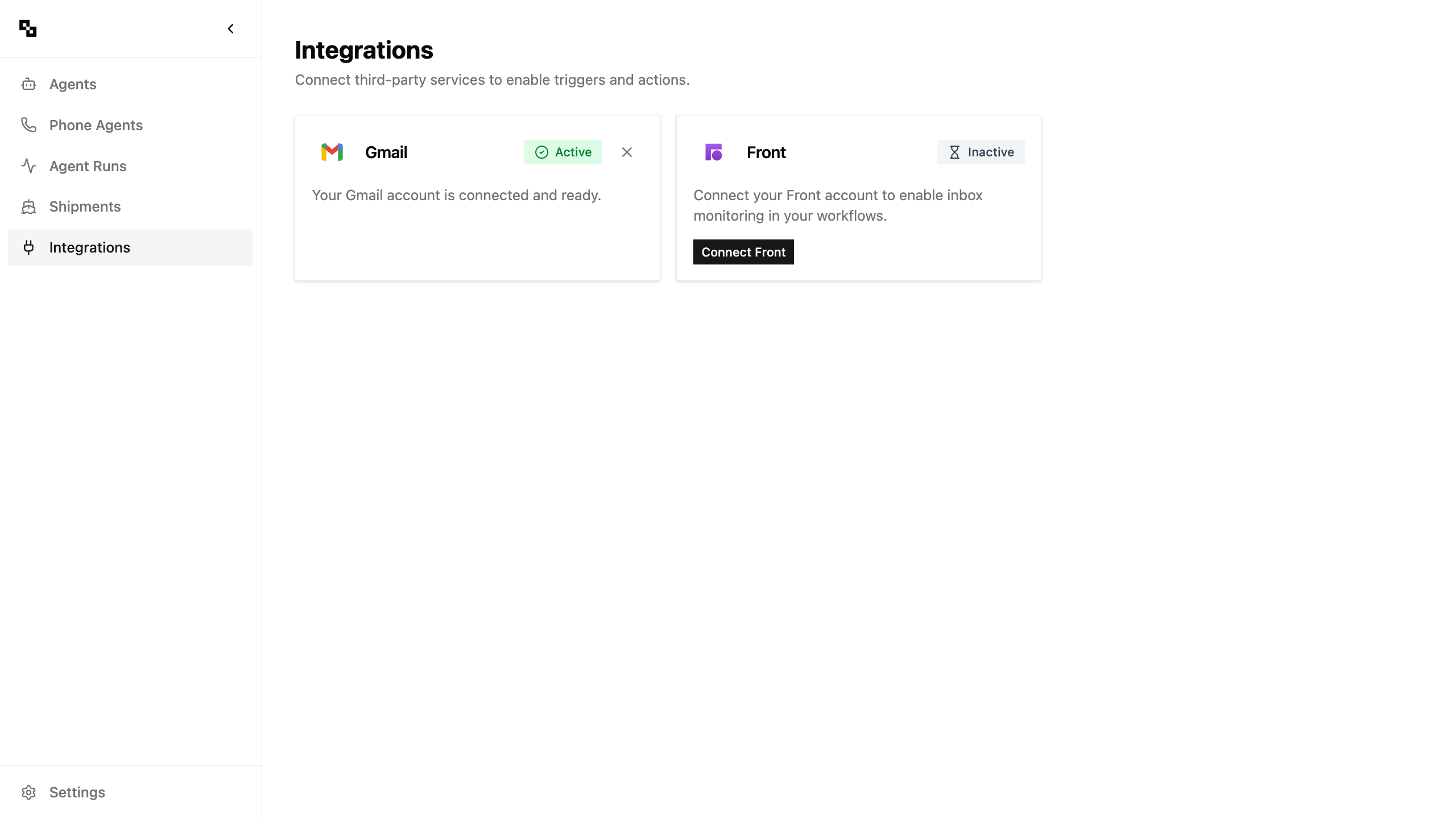
Integrations tab showing the Front connect button
2

Authorize Burt in Front

You’ll be redirected to Front’s authorization page. Review the permissions Burt is requesting and click Authorize to grant access.
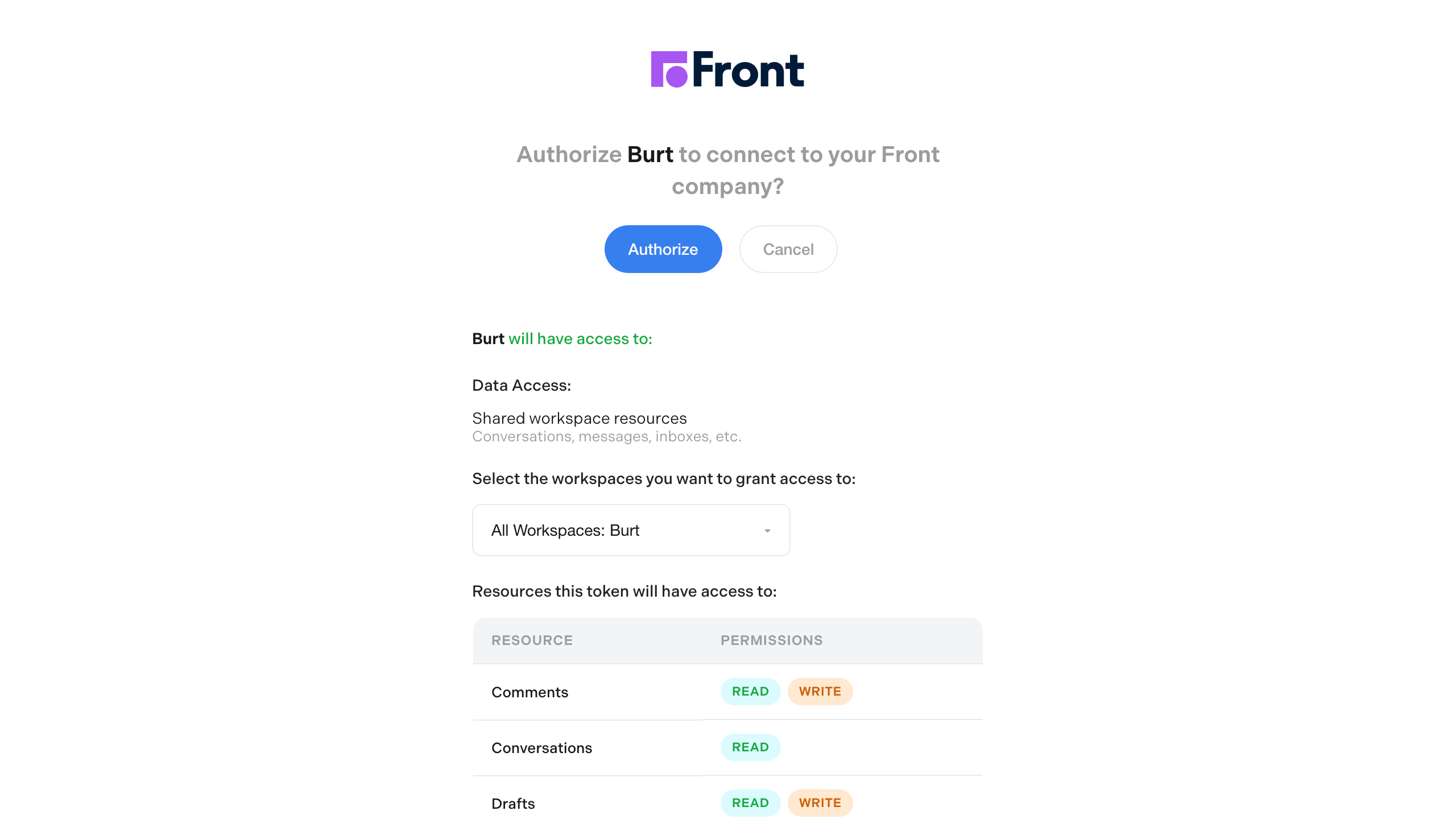
Front OAuth authorization page
3

Front is connected

After authorizing, you’ll be redirected back to the Integrations tab. Front will now show as connected.
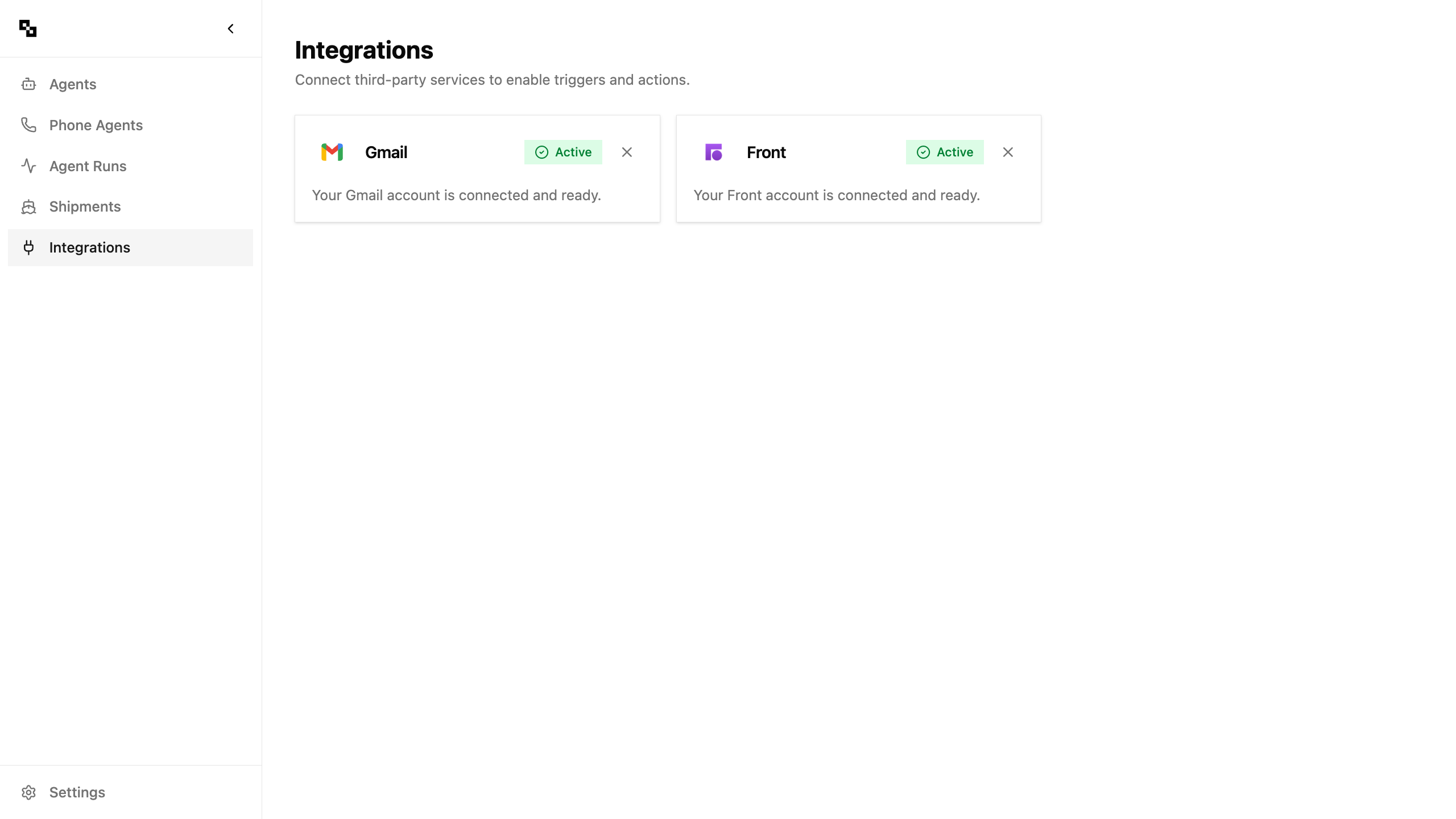
Integrations tab showing Front as connected
4

Use Front as a workflow trigger

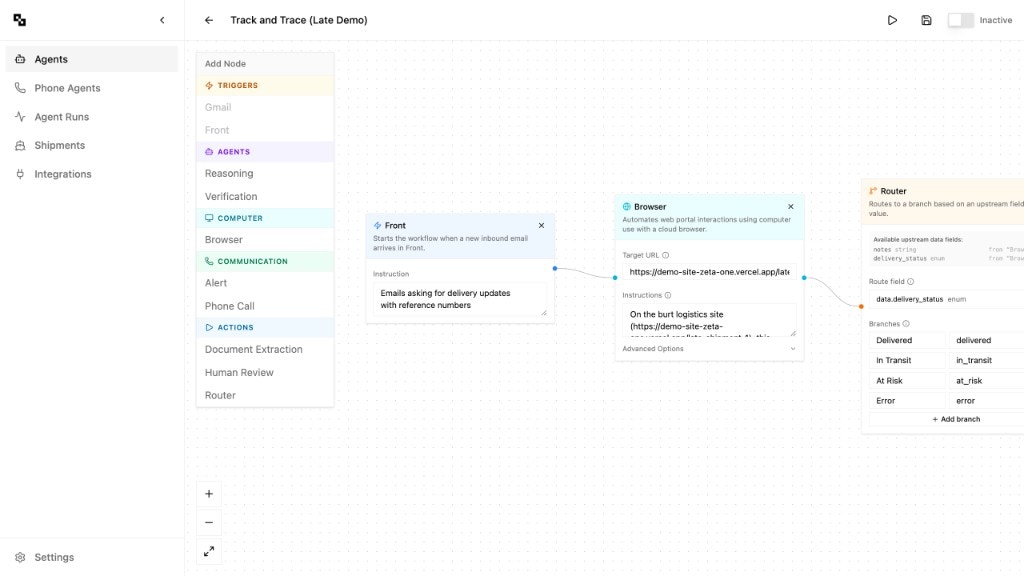
With Front connected, you can add a Front trigger node to any workflow. Configure it to start the workflow when an incoming conversation matches criteria you define — such as specific subjects, tags, or senders.
Workflow editor showing a Front trigger node connected to Browser and Router nodes